
How to Use Volume Master
How to install, use and troubleshoot Volume Master.
Installing and pinning Volume Master
Two steps: add it from the Chrome Web Store, then pin it to your toolbar.
Volume Master is available now on the Chrome Web Store: you can add Volume Master directly from the store page, and the buttons on the homepage point to it. Its Edge listing is still in review at Microsoft Edge Add-ons.
Once the extension is installed, it will appear in Chrome’s extension menu. To keep it visible in your toolbar:
- Click the puzzle-piece icon at the top right of Chrome.
- Find Volume Master in the list.
- Click the pin icon next to it.
The Volume Master icon will now appear in your toolbar at all times. The toolbar badge shows the current boost level for the active tab.
Boosting a tab
Open the popup on a playing tab, move the slider, done.
Volume Master works on tabs that are already playing audio. If a tab is not playing anything, boosting it has no effect — start the audio first, then open the popup.
Opening the popup
Click the Volume Master icon in your toolbar. The popup opens and shows the current tab.
If the controls are greyed out, the current page cannot be boosted. See the troubleshooting section below, and the Compatibility page for which browsers and pages work.
Moving the slider
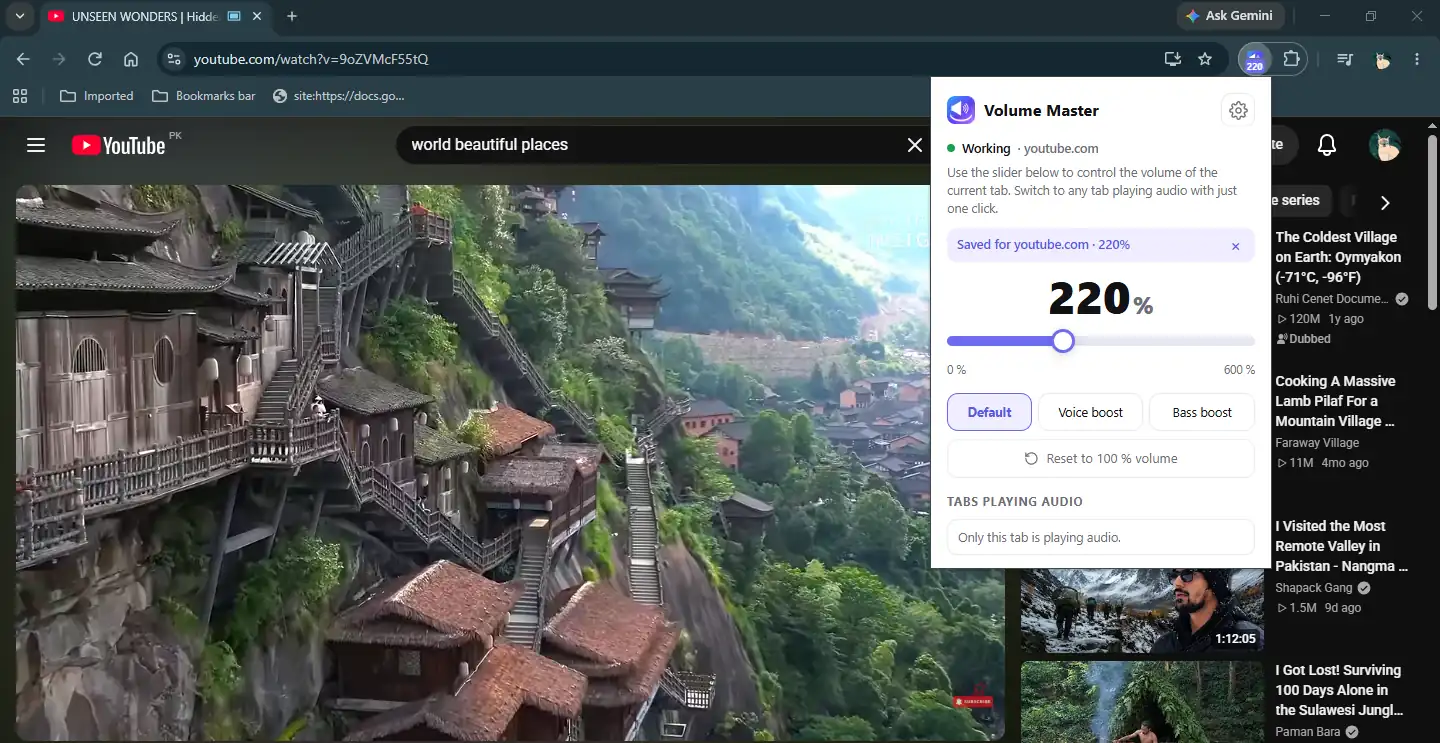
The slider goes from 0% to 600% in 5% steps. Drag it, or use the arrow keys on your keyboard to move it in 10% steps.
You can also click the percentage number in the centre and type an exact value between 0 and 600.
The toolbar badge updates immediately to show the new level.
The 300% warning
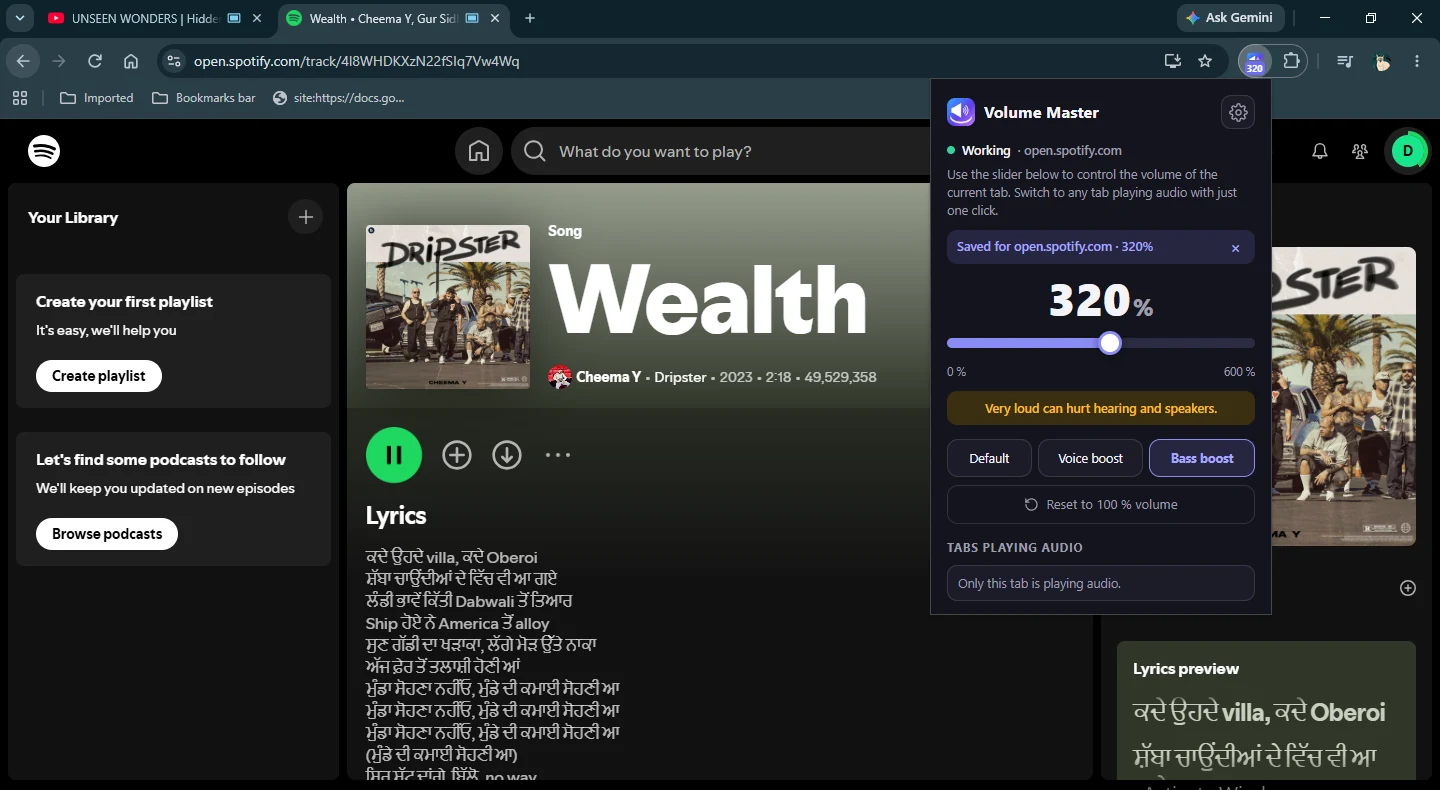
When the slider is above 300%, the popup shows: "Very loud can hurt hearing and speakers."
Take this seriously. Very loud audio can cause hearing fatigue and, sustained, hearing damage. If the audio sounds harsh or distorted, lower the slider rather than increasing it further.
Voice Boost and Bass Boost
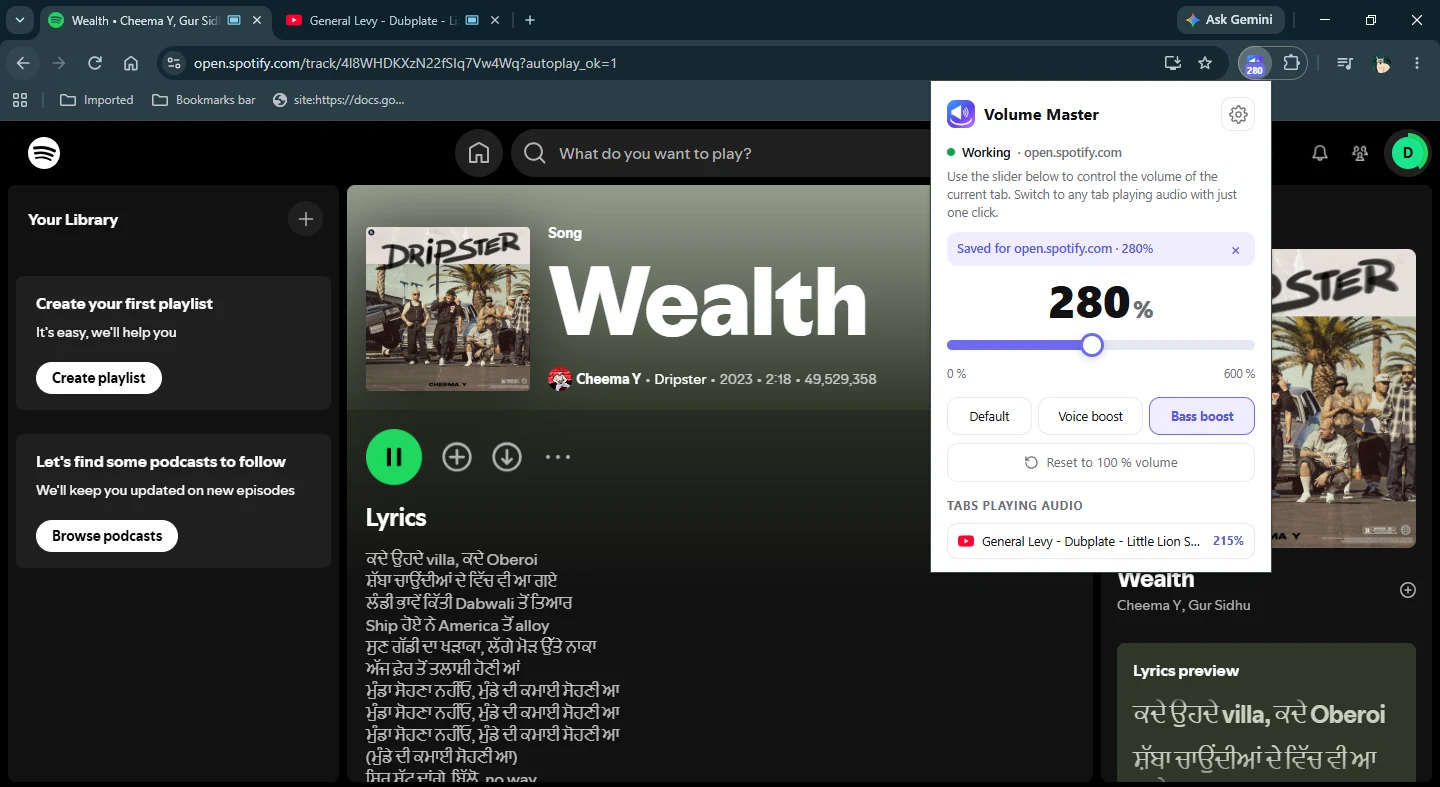
Voice Boost and Bass Boost are two of the popup’s mode chips, sitting next to Default. Tap a chip to switch the mode for the current tab.
Voice Boost raises the mid-range speech frequencies. It is useful when dialogue, a voice recording, or a call sounds thin or muffled.
Bass Boost strengthens the low frequencies in music.
Both modes describe what the filter does in terms of which frequencies it adjusts. The audible result depends on the source audio and your speakers or headphones.
Resetting to normal
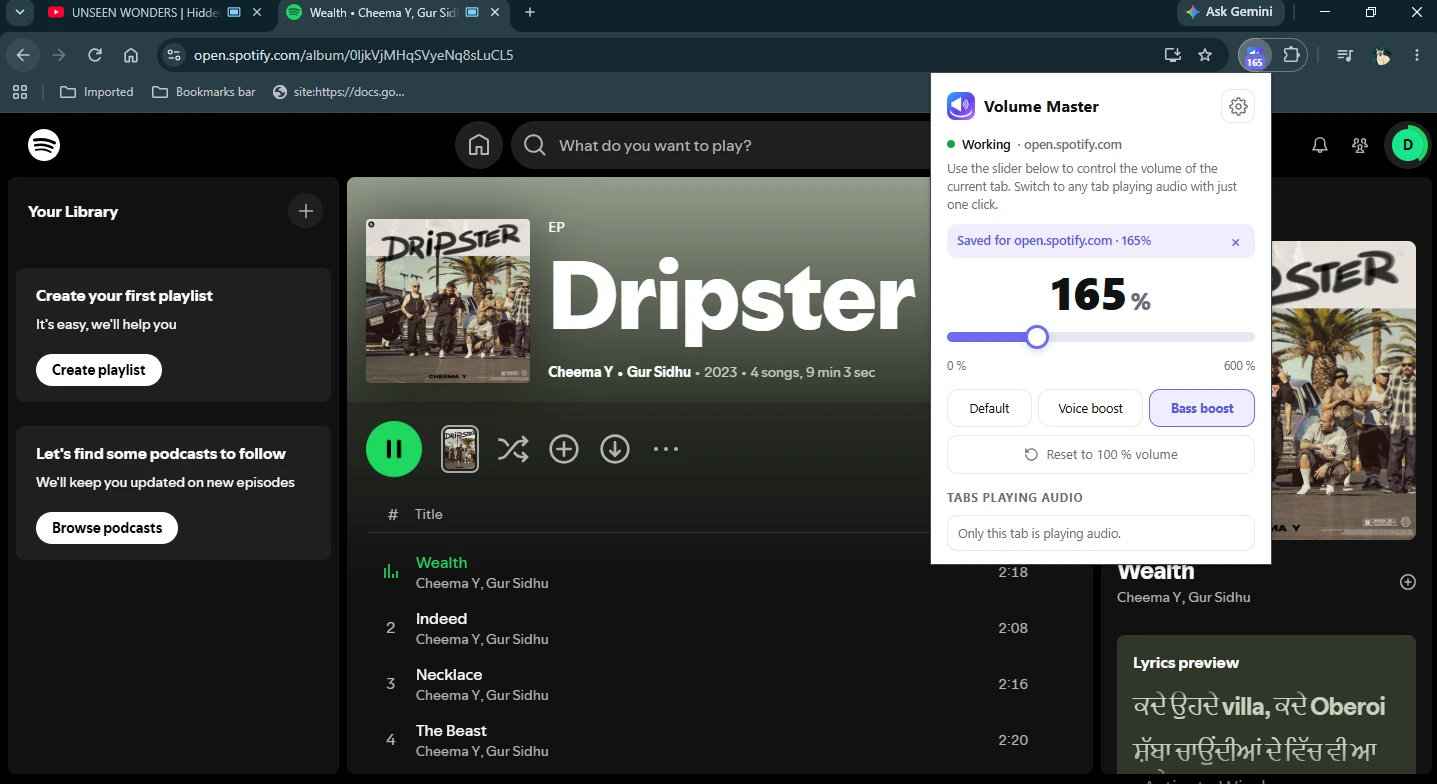
The Reset button returns the tab to its original sound immediately.
At exactly 100% volume, Default mode, a flat equaliser, and Night Mode off, the extension stops running on that tab completely — the audio session ends and the original audio plays untouched. This is by design.
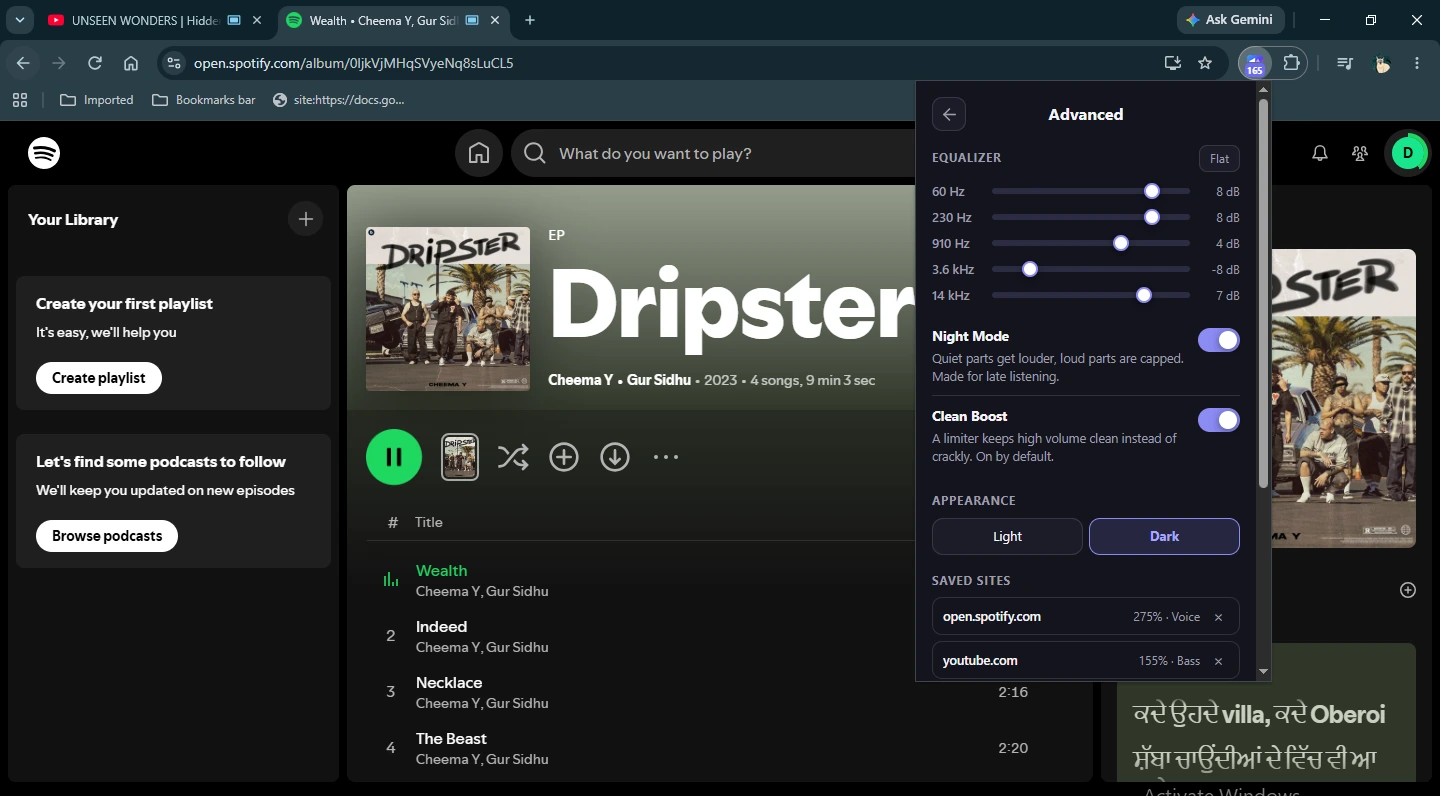
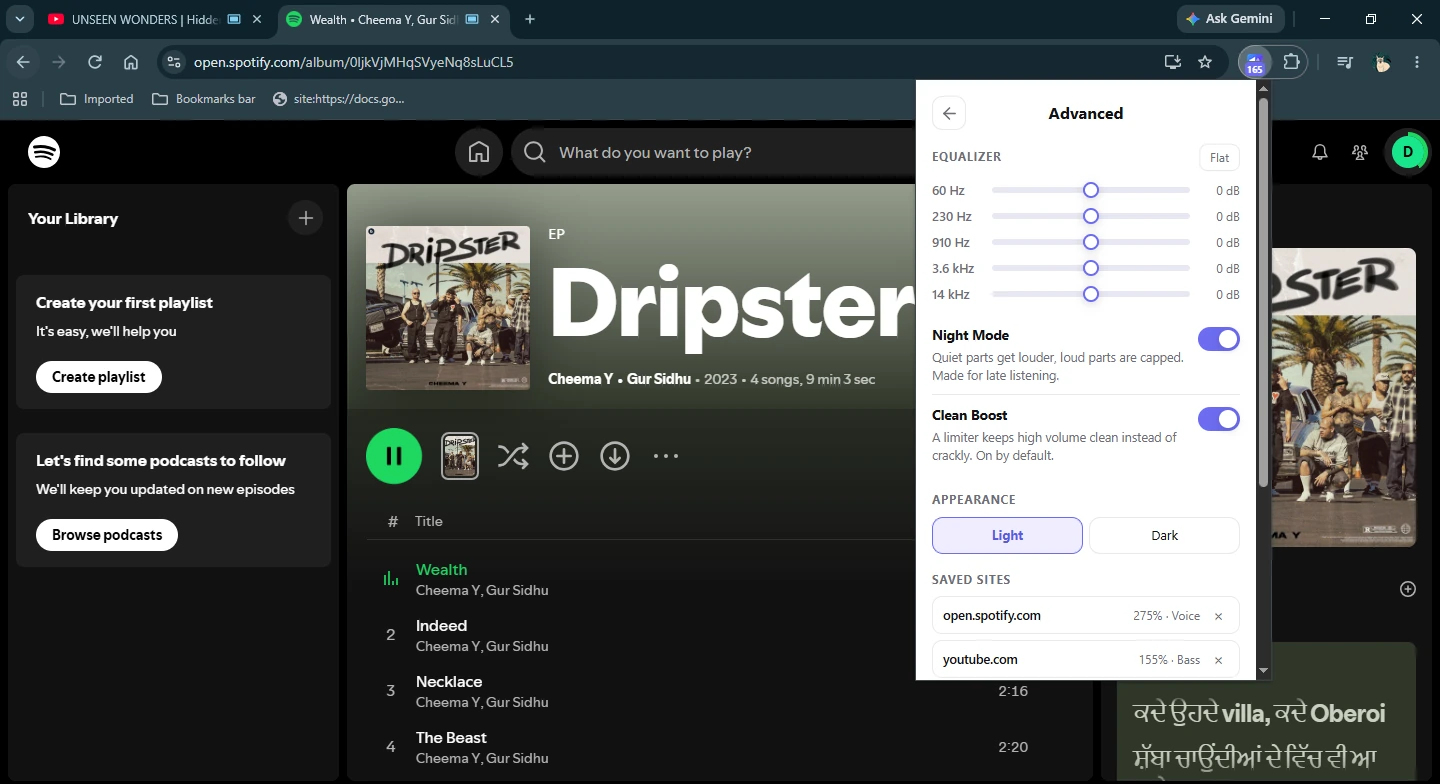
If you return to 100% and the sound still seems different, check that the mode is set to Default, the EQ bands are all at zero, and Night Mode is off. Use the Flat button in the Advanced EQ view to reset all bands at once.
The playing-tabs list
See your other audio tabs at a glance. Click to switch.
At the bottom of the popup, Volume Master lists up to four other tabs that are currently playing audio. Each entry shows the tab’s favicon, title, and its current boost level if one is set.
To switch to a tab, click its entry in the list. The popup closes, Chrome switches to that tab, and the tab’s window comes to the front.
If no other tabs are playing, the list shows: "No tabs playing audio right now."
If this is the only tab playing, it shows: "Only this tab is playing audio."
The list updates each time you open the popup. It is not a live feed — if a tab starts or stops playing while the popup is open, close and reopen the popup to refresh it.
How Volume Master remembers your settings
Set a site’s volume once. Volume Master applies it next time.
When a site is saved
A site is saved automatically when its volume is set to anything other than 100%, or when a non-Default mode is active.
When you open the popup on a saved site, the saved volume and mode are applied immediately. A chip appears in the popup showing: "Saved for [site] · X%".
Keyboard shortcuts also start from the saved level on a saved site.
Removing a saved site
There are three ways to remove a site’s saved settings:
- Set the slider back to 100% with the mode set to Default. The site is forgotten automatically.
- Click the × on the saved-site chip in the popup.
- Open the Advanced view, find the site in the saved-sites list, and delete it from there.
Resetting a tab with the Reset button also forgets the site’s saved settings.
Global settings
Your equaliser bands, Night Mode on/off, Clean Boost on/off, and your chosen theme (light or dark) are saved separately as global settings. They apply across all tabs, not per site.
Shortcuts
Adjust volume and mute without opening the popup.
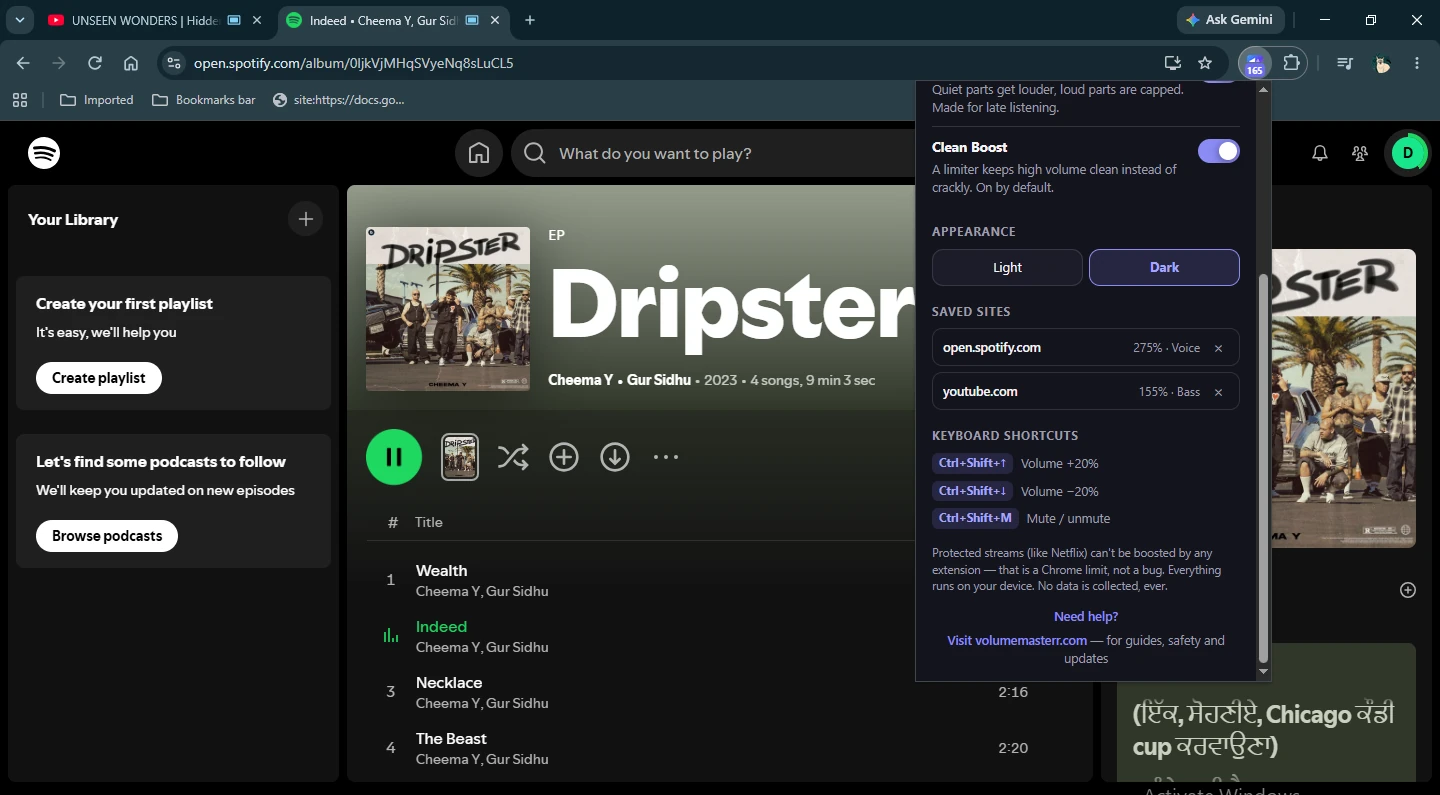
Three keyboard shortcuts are available.
Raise volume
Ctrl+Shift+UpIncreases the current tab’s volume by 20% each press.
On macOS, use Command+Shift+Up.
Lower volume
Ctrl+Shift+DownDecreases the current tab’s volume by 20% each press.
On macOS, use Command+Shift+Down.
Mute / unmute
Ctrl+Shift+MMutes or unmutes the current tab.
On macOS, use Command+Shift+M.
If the tab has no active session, pressing Up or Down starts one from the site’s saved volume.
Mute from rest starts a muted session only when a saved non-default setting exists for that site.
Shortcut changes are reflected immediately in the toolbar badge and in the per-site memory, the same as changes made through the popup.
Fixing common problems
If Volume Master is not working as expected, start here. One problem per entry, answer first.
Nothing happens when I move the slider.
The tab may not be playing audio yet, or the page may be one that cannot be boosted.
- Start the audio on the tab first, then open the popup.
- If the popup controls are greyed out, the page is not supported. Chrome internal pages — including chrome://, Chrome Settings, and the Chrome Web Store itself — cannot be boosted. Navigate to a regular web page with audio.
- The popup shows the message "Open a web page with sound to use Volume Master." on unsupported pages. This is normal.
The sound is not boosting on a video or music tab I expected it to work on.
The stream may be protected by digital rights management (DRM). Chrome does not make DRM-protected audio available for tab capture. This is a Chrome platform rule; it applies to every extension of this type, not only Volume Master.
If the tab’s audio is DRM-protected, there is no workaround. Try a different source or a non-protected version of the content.
The audio sounds distorted or harsh at high volume.
Lower the slider.
Clean Boost’s soft limiter reduces the hard clipping that a plain volume booster produces, but no boost setting is fully distortion-free at all levels and with all source audio.
If the source recording is already loud and compressed, boosting it further will introduce more distortion. A quieter source — for example, an older recording or one captured with a weaker microphone — sounds cleaner at high boost levels.
Try lowering the boost by 50–100% and see if the distortion reduces. If the audio still sounds poor at a moderate level, the source itself is the limiting factor.
See Safety and permissions for the full hearing guidance.
My settings for a site were not saved.
Sites are saved only when the volume is not 100% or the mode is not Default.
If you returned the tab to 100% in Default mode before closing or leaving the site, the settings were intentionally forgotten — that is the designed behaviour, not a bug.
To keep a site’s settings, leave the volume above 100% (or a non-Default mode active) when you navigate away. The × chip and the Advanced saved-sites manager let you delete a saved site deliberately when you no longer need it.
The popup shows a message on certain pages and the controls are disabled.
This is intentional on Chrome internal pages.
Pages at chrome://, Chrome Settings, and the Chrome Web Store are not regular web pages. Chrome does not allow extensions to capture their audio. The popup shows "Open a web page with sound to use Volume Master." and disables the controls to reflect this — it is not an error.
Navigate to a regular website that is playing audio and the controls will be active.
After a Chrome update, the extension seems quieter than it was, or the popup seems unresponsive.
Close the popup, reload the tab, and reopen the popup.
Chrome updates can sometimes require extensions to reinitialise. Reloading the tab and reopening the popup fixes most post-update issues. If the problem continues, open chrome://extensions, find Volume Master, and check the extension is still switched on.
Volume Master is preventing full screen mode
This is normal, not a fault.
If Volume Master is boosting a tab, Chrome will not give that tab true full screen. The video fills the browser window, but the tab bar and address bar stay visible.
The reason is tab audio capture. Boosting works by capturing the tab’s audio stream, and while that capture runs Chrome keeps the browser frame visible — that is what causes the blue dot on the tab. This applies to every volume booster extension, not only Volume Master.
To get true full screen back, stop the boost on that tab: press Reset in the popup, which ends the capture at once. Returning the volume to 100% and the mode to Default, with the equaliser flat and Night Mode off, also ends it. You can also close and reopen the tab.